TessaFab works on sliced files, so set up and slice your print as you normally would, then export the sliced result. It opens:
| Slicer | File | What’s in it |
|---|---|---|
| Bambu Studio, OrcaSlicer | .gcode.3mf |
every plate of the project |
| OrcaSlicer | .gcode |
one plate |
| PrusaSlicer | .gcode or binary .bgcode |
one plate (bed) |
Before you slice: turn Ironing off. Ironing would flatten the pattern.
Bambu Studio and OrcaSlicer
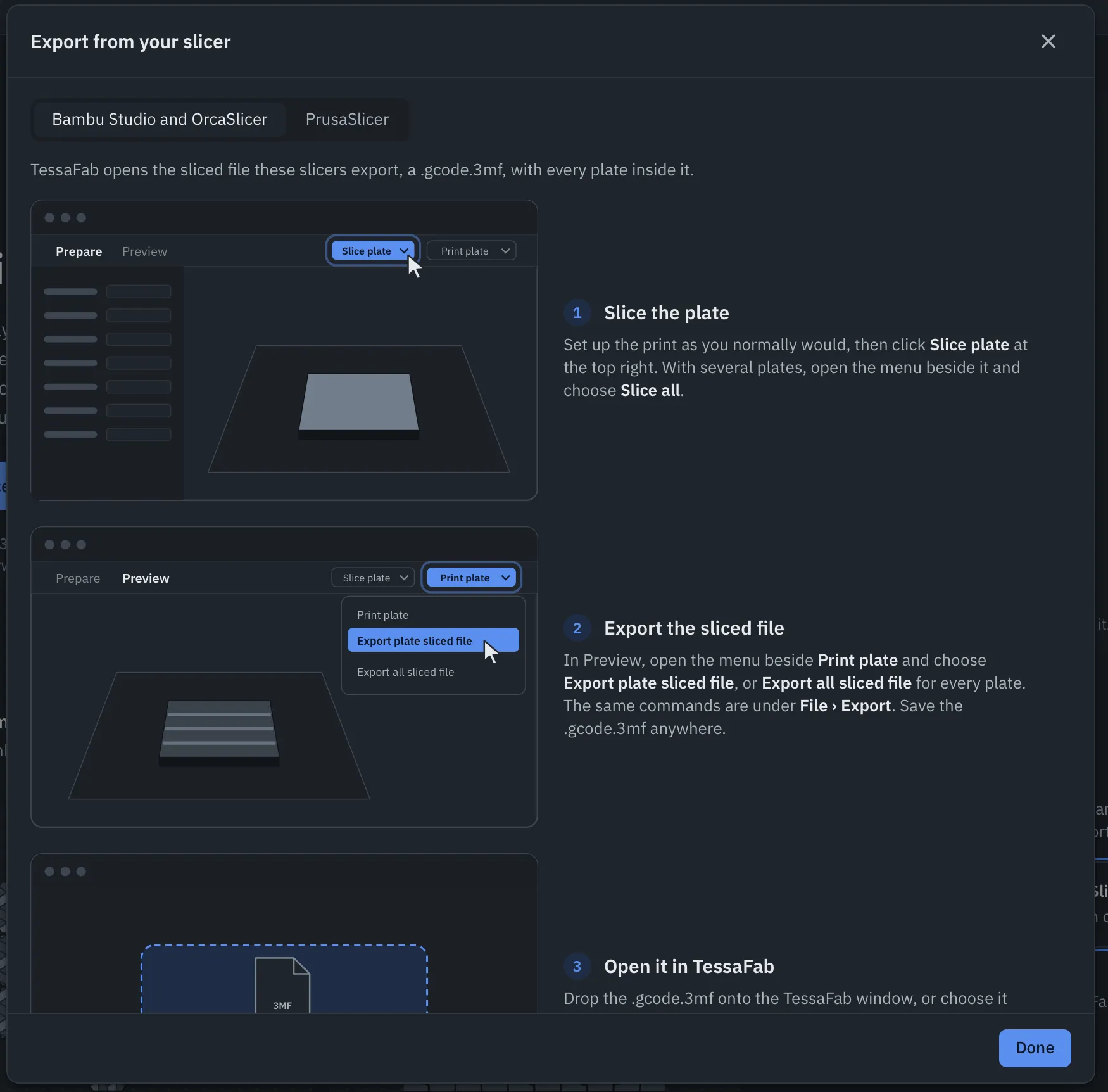
- Slice the plate. Set up the print, then click Slice plate at the top right. With several plates, open the menu beside it and choose Slice all.
- Export the sliced file. In Preview, open the menu beside Print plate and choose Export plate sliced file, or Export all sliced file for every plate. The same commands are under File → Export. Save the
.gcode.3mfanywhere. - Open it in TessaFab. Drop the
.gcode.3mfonto the TessaFab window, or choose it with Open sliced files… on the start screen. Pieces on every plate come in together, ready to assemble. - Print the patterned file. TessaFab exports a new file beside the original. Drag it into Bambu Studio or OrcaSlicer, where it opens in Preview, and send it to the printer. Copying it to the printer’s SD card works too.
OrcaSlicer can also export plain G-code with Export G-code file. TessaFab opens that too.
PrusaSlicer
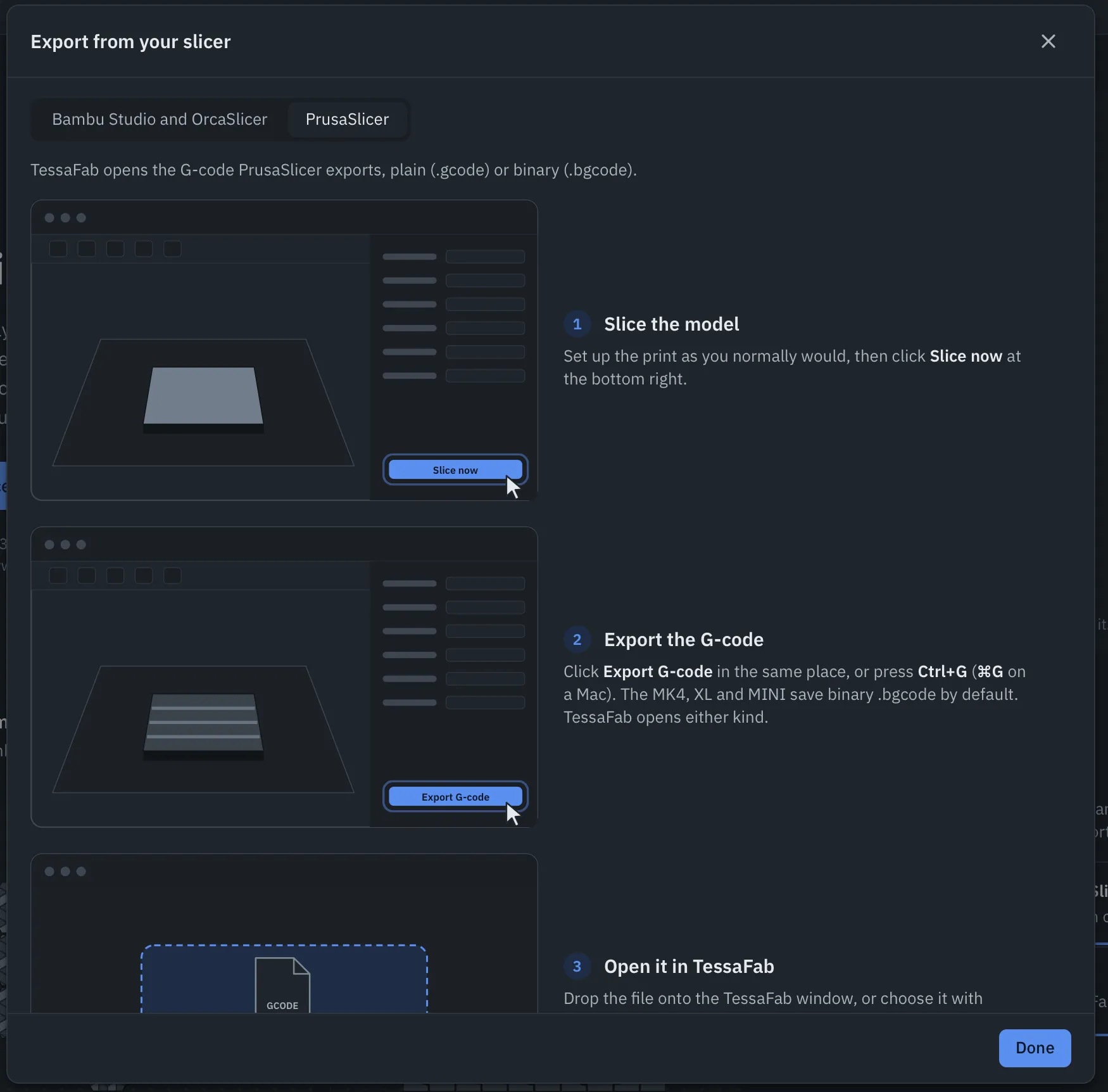
- Slice the model. Set up the print, then click Slice now at the bottom right.
- Export the G-code. Click Export G-code in the same place, or press Ctrl+G (⌘G on a Mac). The MK4, XL and MINI save binary
.bgcodeby default. TessaFab opens either kind. - Open it in TessaFab. Drop the file onto the TessaFab window, or choose it with Open sliced files…. Printing on several beds? Export each one, then open all the files together.
- Print the patterned file. Copy it to the printer’s USB drive, or upload it with PrusaLink or Prusa Connect.
Several files at once
You can open several sliced files together (choose them all in Open sliced files…, or drop them all at once). Their pieces form one assembly, so one pattern can run across pieces sliced on different plates or in different files.
These guides are in the app too: Export from your slicer… in the file menu, or on the start screen.